
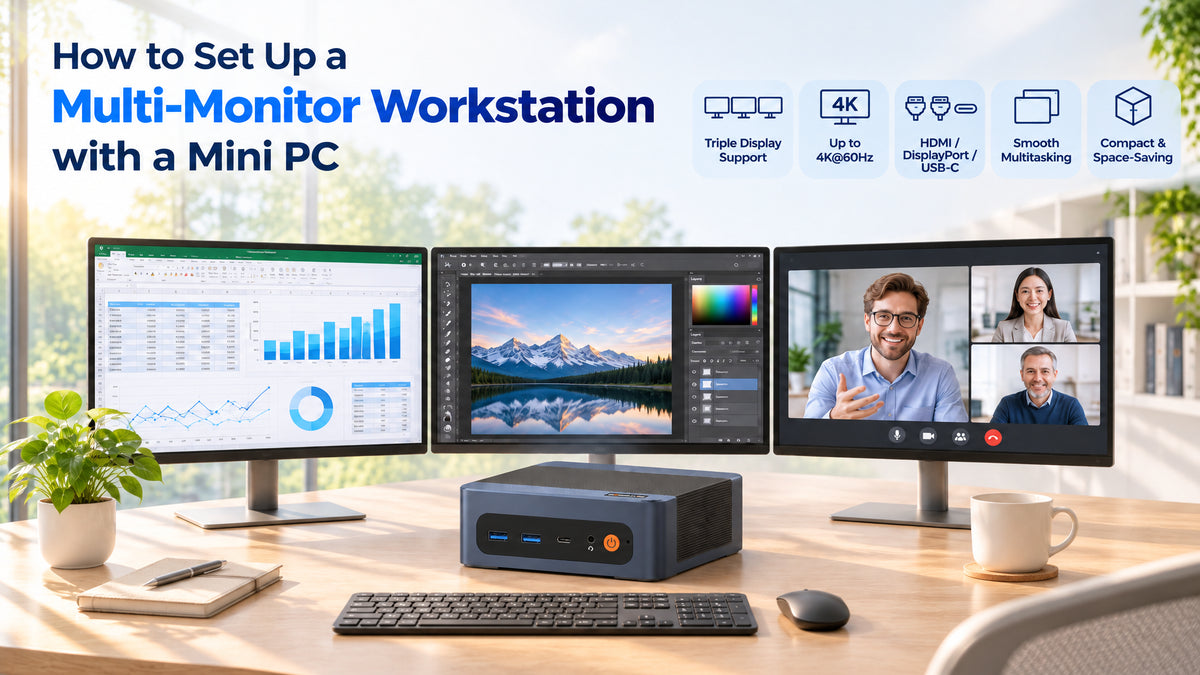
Adding a second or third monitor gives you more room to compare documents, follow online meetings, and keep important tools visible. A Mini PC offers this flexibility while taking up less desk space than a traditional desktop tower.
Before getting started, check display compatibility, connections, and screen placement. Planning these details first can help you avoid buying monitors or accessories that your computer cannot fully support.
1. Check Your Mini PC's Display Support
Check how many monitors your Mini PC can run simultaneously, along with its video outputs, supported resolutions, and refresh rates.
Common display connections include:
HDMI: Widely used with computer monitors and TVs.
DisplayPort (DP): Common on computer monitors and suitable for high-resolution displays.
USB-C: Can carry video when the port supports DisplayPort Alt Mode, a feature that allows USB-C to transmit display signals. Not every USB-C port supports video.
Several video ports do not always mean that all can drive separate monitors at once. Check the manufacturer's supported display configuration.
2. Choose a Monitor Layout for Your Work
Choose a layout based on your daily tasks.
Two monitors: A practical setup for general office work. Keep your main application on one screen and email, documents, or meeting windows on the other.
Three monitors: Useful for customer service, finance, and other roles that involve several applications at once.
Mixed-size monitors: Pair a larger primary screen with smaller secondary displays when desk space is limited.
Consider screen size, resolution, viewing distance, and desk space. Matching resolutions can also create a more consistent viewing experience when moving windows between screens.
3. Connect the Monitors with Compatible Cables
Connect each monitor to a supported output, using cables rated for your target resolution and refresh rate.
For example, 4K at 60Hz typically requires at least an HDMI 2.0 connection (18 Gbps) with a Premium High Speed HDMI cable, or a DisplayPort 1.2 (or higher) connection with a suitably rated cable.
For USB-C video, use a cable that supports DisplayPort transmission; charging-only cables may not carry a display signal.
Also check the capabilities of any splitter or docking station. Many basic HDMI splitters duplicate one image across multiple screens instead of creating separate desktop spaces. For independent content on each monitor, use separate video outputs or compatible multi-display equipment.
4. Configure the Displays in Windows
Open Settings > System > Display in Windows after connecting the monitors.
Select "Identify" to see the number assigned to each screen. Drag the display icons so their positions match the physical arrangement on your desk.
Windows offers several display modes:
Extend these displays: Creates one larger desktop across the connected monitors, so each screen can show different applications.
Duplicate these displays: Shows the same content on more than one screen.
Show only on: Keeps the display active on a selected monitor.
Extend mode is usually best for productivity because it gives you room to keep different tasks visible. You can also adjust resolution, refresh rate, and scaling for each screen.
5. Arrange Your Workspace
Place your primary monitor directly in front of you, with secondary screens within easy viewing distance. Adjust their height to avoid repeatedly tilting your head.
For example, use the main display for spreadsheets, the second for research, and the third for team chat. Windows Snap layouts can help organize open applications.
BOSGAME E7: A Practical Option for Triple-Monitor Work
For a compact Mini PC with built-in multi-display connections, consider the BOSGAME E7.
The E7 features a 6-core, 8-thread processor with boost speeds of up to 4.7GHz, 16GB DDR4-3200 memory, and a 512GB M.2 2280 PCIe 3.0 NVMe SSD. Its memory can be expanded up to 64GB for users who need more capacity for multitasking.
For displays, the E7 provides HDMI 2.0, DisplayPort, and a USB-C port with DisplayPort Alt Mode. These three outputs support simultaneous connection to up to three monitors, so office applications, reference materials, and communication tools can remain visible.
The E7 also includes four USB 3.2 ports, dual Gigabit Ethernet, Wi-Fi 6, and Bluetooth 5.2. Wake-on-LAN and auto power-on add flexibility for business and professional environments, including setups that need remote startup or scheduled operation. For 4K output, use compatible cables that meet the required specifications.
Final Thoughts
Check display support, choose monitors for your workflow, and use cables that meet the required specifications. Take time to arrange the screens around the applications you use most. With a suitable layout and Windows settings, a compact Mini PC can provide a flexible workspace without taking over your desk.

Leave a comment
All comments are moderated before being published.
This site is protected by hCaptcha and the hCaptcha Privacy Policy and Terms of Service apply.