

A Mini PC may run smoothly when you start a game or render, then slow down after extended use. You might notice louder fan noise, lower frame rates, or declining benchmark scores. CPU overheating is one possible cause, but it helps to understand the system's behavior before assuming there is a fault.
When a processor approaches its thermal limit, it can reduce clock speed and power consumption to control heat. This protective response is called thermal throttling. Recognizing it can help you assess performance and manage cooling.
1. What Happens During Thermal Throttling?
Thermal throttling is a built-in processor protection feature. As CPU temperature approaches its specified limit, the processor reduces frequency and power use to control heat.
Performance may recover as temperatures fall. A brief temperature peak is not automatically a problem. What matters is whether the Mini PC can maintain consistent performance during longer workloads.
2. Why Cooling Matters in a Mini PC
A compact computer has less room for cooling hardware and airflow than a full-size desktop. Cooling depends on the heatsink, fan behavior, ventilation, and surrounding room temperature.
A short benchmark shows performance over a brief period. A longer test reveals how the system behaves as heat builds up. Sustained performance is therefore more informative than maximum boost speed alone.
3. Thermal Throttling vs. Power Limit Throttling
A reduction in CPU speed does not always mean overheating. Thermal throttling occurs when the processor approaches its temperature limit. Power limit throttling happens when it reaches a configured power ceiling, even if temperatures remain below the thermal limit.
Monitoring tools can help identify which restriction is active. CPU frequency alone does not tell the whole story.
4. Monitor Your Mini PC Under Load
Record the CPU temperature at idle, then run a repeatable workload such as Cinebench. Compare a short test with an extended loop to see whether performance changes as the system warms up.
HWiNFO can show CPU temperature, clock speed, package power, and throttling indicators. Also note the performance profile, room temperature, and test duration so results can be compared fairly.
A high temperature reading alone does not prove thermal throttling. Look at temperature and clock speed together.
5. Understanding Fan Curves: A BIOS Adjustment Example
Some Mini PCs offer BIOS fan-curve settings that allow users to customize fan behavior based on CPU temperature. These settings can help balance cooling performance and operating noise.
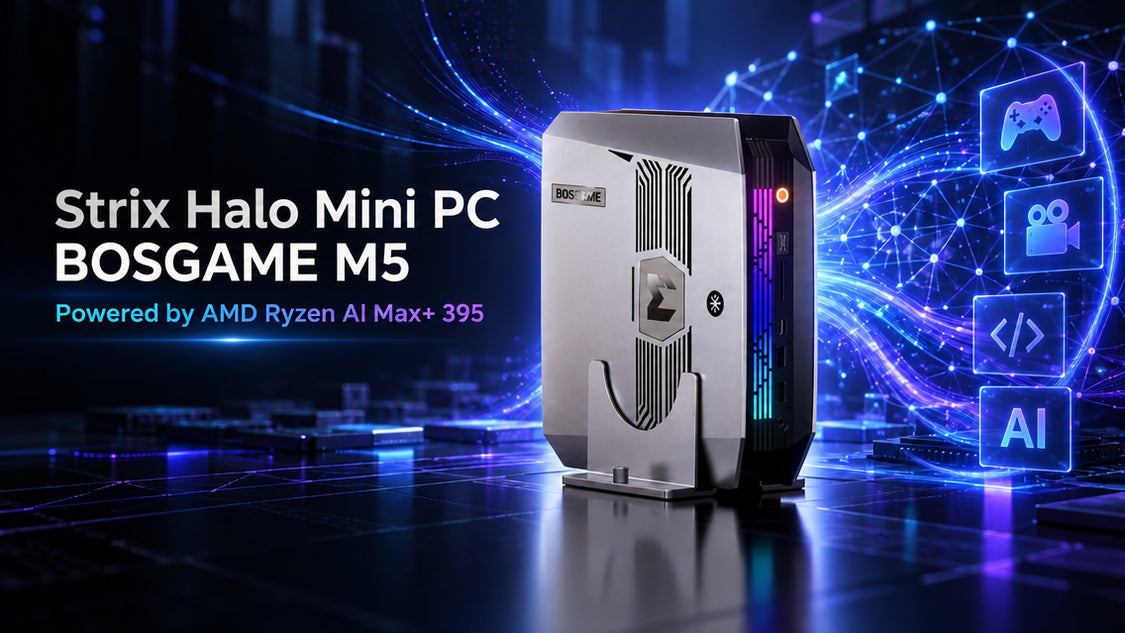
For a practical example, BOSGAME provides a tutorial demonstrating the fan settings available in the M5 BIOS.
Restart the computer and enter BIOS. Open Advanced, then select CPU Fan Setting. The page displays CPU temperature and fan speed, along with several adjustable options.
Fan Off Temperature sets when the fan can stop. Fan Start Temperature determines when it begins running. Fan Full Speed Temperature sets when it reaches maximum speed, while Fan Start PWM controls its initial speed percentage.
Automatic Control Slope and Delta Temperature determine how fan speed increases as temperature rises.
For example, set Fan Start PWM to 60%, Automatic Control Slope to 2, and Delta Temperature to 3°C. With this example configuration, fan speed increases by 2% for every 3°C rise. These values are examples, not universal recommendations. The right curve depends on the system, environment, and noise preference.
A full-speed threshold set too low can make the fan reach maximum speed earlier and increase noise.
After making changes, press F4 to save and exit, then restart. Adjust gradually and monitor temperatures, fan behavior, and noise. BIOS options may vary by model and firmware.
6. Improve Airflow Around Your Mini PC
Place the computer on a firm, level surface and keep ventilation openings clear. Avoid enclosed cabinets or tight spaces where warm air can collect.
If using a VESA mount behind a monitor, make sure it does not block the intake or exhaust. Keep vents free of dust so airflow is not restricted.
7. Evaluate Cooling Performance Over Time
One temperature reading cannot describe a Mini PC's cooling performance. During sustained testing, consider CPU temperature alongside clock speed, package power, and benchmark results.
If temperatures rise while performance remains steady, the system may be handling the workload effectively. If clock speeds and benchmark scores fall near the processor's thermal limit, check monitoring software for throttling indicators.
For fair comparisons, keep the workload, performance profile, and room temperature consistent.
8. Conclusion
A slower Mini PC is not necessarily faulty. Thermal throttling is a built-in response that helps a processor manage excessive heat. Monitor performance under load, keep airflow clear, and adjust fan settings carefully.
When evaluating a Mini PC, look beyond peak clock speed. Cooling, power limits, and sustained performance all matter.

Leave a comment
All comments are moderated before being published.
This site is protected by hCaptcha and the hCaptcha Privacy Policy and Terms of Service apply.