
What Is OCuLink?
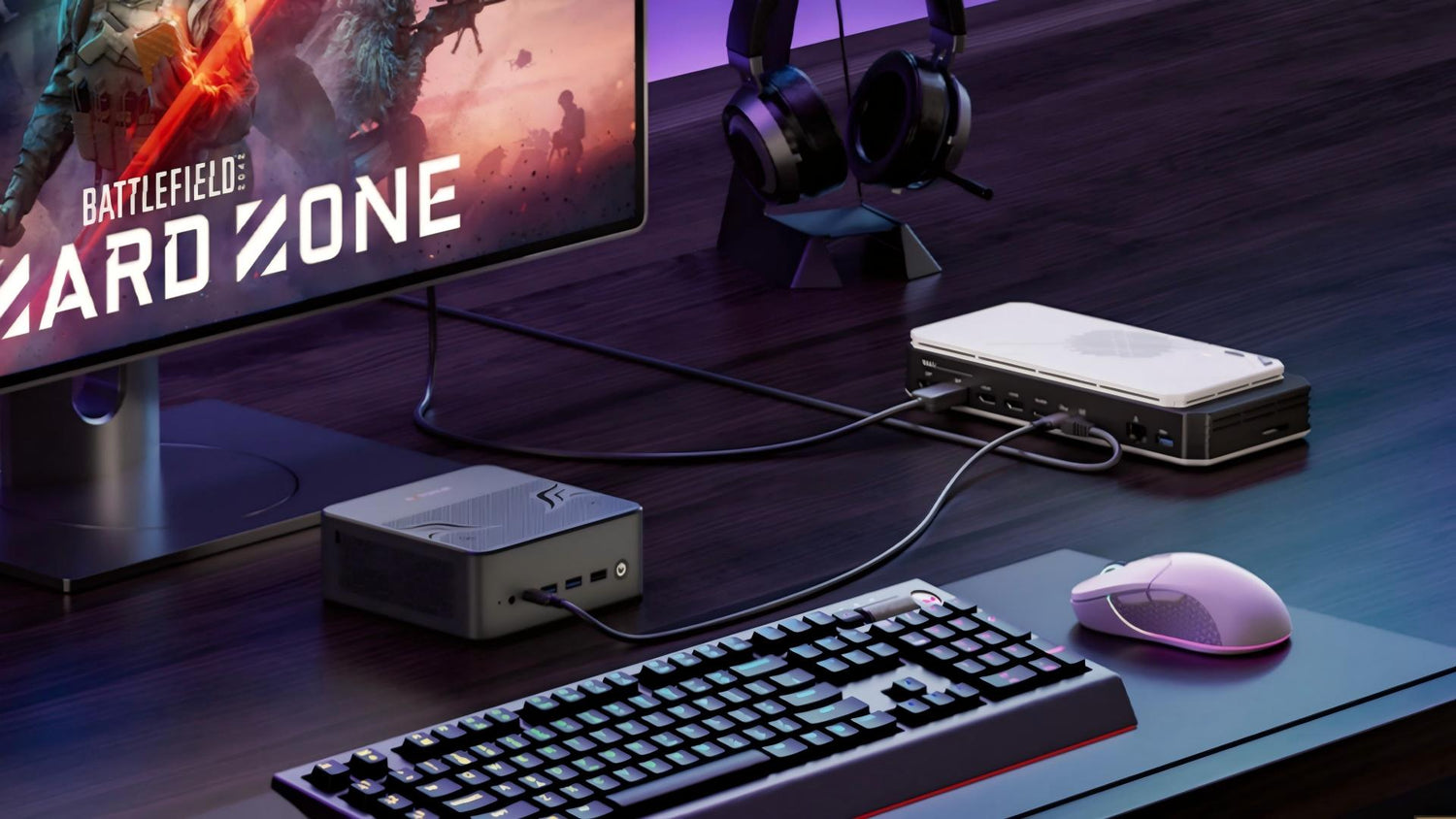
OCuLink (short for Optical Copper Link) is a high-speed PCIe connection standard that extends PCIe outside the computer through a compact port and cable. In simple terms, it lets a Mini PC communicate with external hardware in a more direct way than many USB-based solutions.
That matters because PCIe is the same communication path used by internal desktop graphics cards. By exposing PCIe lanes through an external port, OCuLink makes it possible to connect an external GPU with less protocol overhead than many alternative connection methods.
Why Does It Matter More for Mini PCs?
On a standard desktop, GPU upgrades are straightforward. You open the case, swap the card, and you are done. Mini PCs do not have that option. The GPU situation is usually settled at the factory, and integrated graphics is what you get.
OCuLink changes that by turning GPU expansion into something modular. Instead of replacing the entire machine when you need more graphics power, you can add an external GPU setup only when it is useful.
That makes OCuLink especially relevant for users who care about gaming, local AI inference, video editing, 3D rendering, or other GPU-heavy tasks. It gives a compact machine a more realistic upgrade path without giving up its small footprint.
How Does an OCuLink eGPU Setup Work?
An OCuLink eGPU setup has four core components: a Mini PC with an OCuLink port, an OCuLink cable (SFF-8612 to SFF-8611), an external GPU dock or enclosure, and a desktop graphics card. The dock needs its own power supply because desktop GPUs require far more power than a Mini PC can deliver on its own.
Here is what the process looks like in practice:
Step 1: Confirm your Mini PC has an OCuLink port.
Not every compact machine includes one. Check the spec sheet before assuming — it is usually labeled as OCuLink or SFF-8612 on the port diagram.
Step 2: Choose a compatible eGPU dock.
Look for docks that accept an OCuLink input and can accommodate the GPU size you plan to use. Make sure the dock’s power supply is rated for your GPU’s TDP.
Step 3: Install your GPU into the dock.
Seat it into the PCIe slot and connect the power cables, the same way you would in a desktop case.
Step 4: Connect and boot.
Plug the OCuLink cable in before powering on where possible. Some systems detect the GPU during POST; others may require a reboot after the initial connection.
Step 5: Install drivers.
Download the appropriate GPU drivers from AMD or NVIDIA. The system should detect the card and complete installation normally.
For display output, you can run a monitor directly from the dock’s display ports, or use the Mini PC’s own outputs with the external GPU rendering behind the scenes. The first option typically delivers better performance.
OCuLink vs Thunderbolt vs USB4
If you are looking at external GPU options, OCuLink, Thunderbolt, and USB4 are the main names you will see. They can all work in eGPU scenarios, but they are not equal in how directly they connect the GPU.
|
Item |
OCuLink |
Thunderbolt 4 |
USB4 (40Gbps) |
|
Bandwidth |
Up to 64 Gbps on PCIe 4.0 x4 implementations; some Mini PCs may run OCuLink at PCIe 3.0 x4 |
40 Gbps interface; PCIe throughput in eGPU use is often around 22–25 Gbps |
40 Gbps interface; PCIe tunneling depends on implementation |
|
Overhead |
Low, closer to native PCIe |
Higher, tunneled PCIe |
Higher, tunneled PCIe |
|
GPU performance |
Closest to native; workload-dependent |
Usually lower than OCuLink |
Usually similar to TB4; implementation-dependent |
|
Dock/cable cost |
Often lower |
Often higher |
Mid-range |
|
Ecosystem |
More limited, OCuLink-specific |
Broad Thunderbolt ecosystem |
Broad but variable |
OCuLink is usually the better choice when raw graphics performance matters most. It uses a more direct PCIe path and typically carries less overhead, which is why it often performs better in gaming and GPU-heavy workloads.
Thunderbolt and USB4 are still attractive for convenience and broader compatibility. They are more flexible for general peripherals, but that flexibility often comes with some performance trade-off in external GPU use.
Who Should Care?
OCuLink eGPU setups are not for everyone. Here is an honest breakdown.
It makes sense if you:
- Own or are buying a Mini PC as your primary machine and want GPU headroom without switching to a tower
- Run GPU-accelerated workloads locally—Stable Diffusion, LLM inference, video encoding, or 3D rendering
- Want a modular setup where the GPU can be upgraded or detached when not needed
- Are building a compact homelab and want to keep the footprint small
It probably is not worth it if you:
- Already have a desktop with a PCIe slot—just install the card directly
- Only need light work or browsing—integrated graphics on modern Mini PCs handles this reasonably well
- Are not comfortable with a multi-component setup involving separate power, cabling, and driver management
- A good rule of thumb is simple: if GPU performance is a real part of your future plans, OCuLink deserves attention. If not, it may be unnecessary extra hardware.
Common Mistakes and FAQs
Mistake 1: Buying a dock before confirming OCuLink port presence.
This is the most common error. Some Mini PCs have USB4 or Thunderbolt but no OCuLink port, and these are not interchangeable. Check the exact port labeling on your machine before purchasing a dock.
Mistake 2: Underestimating power supply requirements.
The eGPU dock needs its own PSU sized for the GPU inside it. Match the power supply to the GPU's actual TDP, with some headroom.
Mistake 3: Expecting identical performance to a native PCIe installation.
OCuLink is the closest external connection to native PCIe, but a small performance gap still exists. Expect figures within 5–10% of native in most workloads.
Q1: Does OCuLink work with modern GPUs?
In general, yes, as long as the dock and power delivery are compatible with the card you want to use.
Q2: Do I need special drivers for OCuLink?
No. The GPU still uses the normal AMD or NVIDIA drivers; OCuLink is just the connection method.
Q3: Is OCuLink better than Thunderbolt for eGPU use?
For graphics-focused workloads, it often offers better performance potential. For general connectivity, Thunderbolt still has an advantage in convenience and ecosystem support.
BOSGAME Mini PCs with OCuLink
If you already know you want an OCuLink-ready Mini PC, it makes sense to start with a system that includes the port from the beginning. That avoids workarounds and keeps the external GPU path much simpler.
BOSGAME VTA-439 includes a built-in OCuLink port for external GPU use, and its product page presents it as part of a broader expandability story alongside AMD Ryzen AI 9 HX 470 performance and multiple storage options.
BOSGAME VTI-490 pairs an Intel Core Ultra 7 358H with Intel Arc graphics for content creation, AI workloads, and gaming. It also includes OCuLink support, giving users the option to add an external GPU later without replacing the system.
For readers who want a compact machine that still leaves room for future GPU expansion, these two models are practical examples of what an OCuLink-ready Mini PC can look like in real use.
Practical Takeaway
OCuLink is not a mainstream technology yet, but it solves a real problem for Mini PC users in a way that Thunderbolt and USB4 do not quite match. If you are working with GPU-intensive tasks and want to keep your setup compact, it is worth understanding before you buy.
The short version: check whether your Mini PC has an OCuLink port. If it does, a capable eGPU setup is within reach. If it does not, and GPU performance matters to your plans, that port is worth factoring into your next purchase decision.


Leave a comment
All comments are moderated before being published.
This site is protected by hCaptcha and the hCaptcha Privacy Policy and Terms of Service apply.